Showing posts with label Batch Processing. Show all posts

Friday, December 08, 2006

Batch Processing to Folder

Welcome back!

In my last post, Actions and Batch Processing, I talked about how to add adjustment layers to a group of images using batch processing. In that tutorial, the images were neither saved nor outputted to a specific folder. I had a number of requests for instructions on how to batch process with Source > Folder and Destination > Folder. So, while this set of instructions is fairly wordy, it is meant as a sub-tutorial to my last one.

Let's start off with a bit of background. If there is a series of commands you apply to images on a regular basis, and you do it the same way every time, you can set up something called Actions. Some examples of this would be flattening layers in .psd images, changing the colour space, resizing them for web, and adding Unsharp Mask, or a black and white conversion method you like for portraits that has several steps. You can create actions for this that will run the commands on images automatically. Then, if you want to perform those commands on a specific group of images (either a group of images you have open, or all the images in one folder), you can do so with Batch Processing. That is what we will talk about now.

I am assuming now that you already have an action created. The first time you do this, it is a good idea to copy several images into a test folder so you can run through these steps without having to worry about doing something bad (and likely permanent!) to your original images.

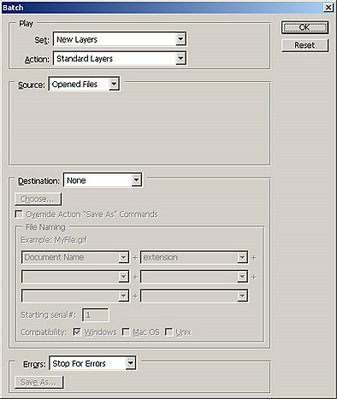
With Photoshop CS (or CS2, which is what I based this tutorial off), click File > Automate > Batch. This window will appear:
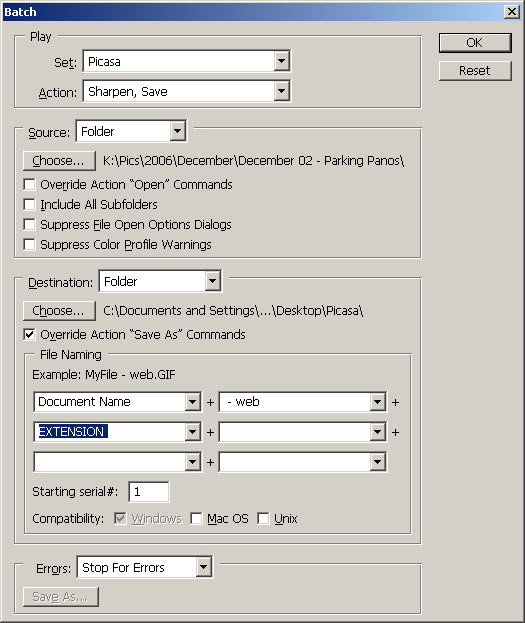
Play box: Choose the set and action that you want applied to the group of photos.

Source box: Choose either Opened Files (Note: This will apply the action to all images open in Photoshop) or Folder.
  • If Folder is chosen, be sure to select Override Actions "Open" Commands if 'Open' is part of your chosen action.

  • Decide whether you want to include subfolders or not.

  • Choosing Suppress File Open Options Dialogs will cause Photoshop to steamroll through this step. ie: the File > Open options window will not appear for you. You decide if you want to select this option.

    (Note: I don't have the Open command as part of any of my actions.)

  • Suppress Colour Profile Warnings may be a good one to leave unchecked as you could lose colour information (and thus image info), forcing the image from its native colour space into another.


  • Destination box:
  • None is what we covered in the Actions and Batch Processing tutorial. Use this if your action does not have Close as the final step, and if you want to keep working on the images after the action has run.

    (Note: for actions that require further work after the action is applied, I like to omit the Save command. This is just my preference.

  • Save and Close will save the images back where they came from and overwrite the originals. I prefer to keep my originals as is.

    (Note: if you have created layers, or your action adds layers, make sure to add Layers > Flatten Image as part of the action, or saving as a .jpg or .tif will not work.)

  • Folder is my preference. You can choose the same original folder, but with the steps below change its file name easily! Now, choose your output folder. I recommend changing the folder if the images are batch processed for a one-time use (ex: uploading to a website, then deleted from hard drive) or if you do not rename the images somehow. I always prefer to rename a newly saved image no matter where I put it (ex:img-sharpened.jpg, img-web.jpg, img-b&w.jpg, etc.).
  • If part of your action is to Save, then be sure to check Override Action "Save As" Commands or every picture will be given the same name as the file you saved when you first created the action. This "feature" is just one more reason not to save the new files in the same place as the originals. If you just did work on 30-odd images and were batch processing the same action on all of them as the last step, they could be lost as they'd all be saved to the same file name, and thus overwritten.

  • File Naming sub-box: You have some flexibility here, but for the sake of file management, here's what I do: keep the original name (titled Document Name) in the first drop-down menu, then in the second drop-down menu, add a space-hyphen-space then a word/phrase (ex: - web, or - sharpen). I like to keep out-of-camera file names attached so I can more easily find the originals later.

  • You can keep adding more options in the drop-down menus. And you don't need to keep the original file name, either. You could have 'Sunday Brunch' (just an example) as the beginning of the file name (and thus the common denominator in all the images about to be batch processed), then use a serial (1, 2, 3, 4 Digit Serial Number or Serial Letter) from the drop-down menu to consecutively number all the images. To completely rename the images, just type whatever name you want used in the first drop-down menu.

  • You can even add the date to the image, though if you do, I would definitely recommend adding a serial to it iff you had the whole series completely renamed (ie: if they all say "SundayBrunch061106", you'll need something to follow to differentiate them. Again, this is why I keep the "DSC_####" as the prefix on all my edited pics.)

  • Finally, choose Extension as the option in the last drop-down menu. This will automatically put the file extension on each image. (Don't worry that the example given says ".gif" - it will not make them gifs unless you tell it to. Saving a jpg will keep it a jpg.)

  • The Starting Serial tick-box only comes into play if you select Serial Number or Serial Letter from the drop-down menus. You can have your images start numbering from wherever you like.


  • Compatibility: I use a PC (with WinXP) so 'Windows' is selected by default for me. Checking the others makes sure the file names will be recognized on the other respective systems. I don't check the others, and have never had a problem. My primary concern is having my images work on my system, and follow the file-naming scheme I create for them.

    Errors box: I prefer it to Stop for Errors, such as trying to save a jpg that has layers (can't be done!), because sometimes I rush and make a mistake. This will not catch all your errors (such as overwriting the same file, over and over again - remember Override Action "Save As" Commands from earlier?), but still helps. It hasn't caused me any problems (other than occasional self-doubt!).

    When finished, click OK, and you're finished!

    I do hope this was some help. If I was unclear or mistaken at any point, or if you want more information added, please Email me.

    Thanks.
    Matt

    Sunday, November 26, 2006

    Actions and Batch Processing

    Update Jan 9 /07: I've added a section here on loading pre-made actions.


    In the last post, I talked about adding layers to photographs. In future posts, I will talk about how to use these layers in editing photographs.

    In this post, I will talk about how to add these layers to photographs using something called actions. Running Actions can be applied to just one photo, or you can add layers to all the pictures you have open (or all the pictures in one folder) using Batch Processing.

    Creating Actions

    In the last post, I talked about adding Adjustment Layers. If there is a task that has several steps, such as this, that you do frequently to images, creating an action can make this easier. An action is a series of tasks that you can program Photoshop to remember, and run all of them automatically at the press of a button.

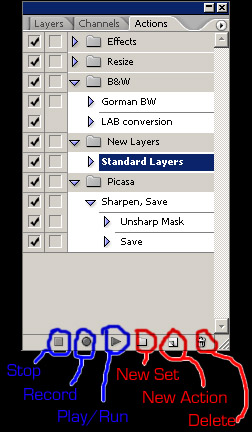
    To create an action, first open an image (any image) in Photoshop, then click Window > Actions. The window shown below will open.


    Note: if you want to add several tabs to this one window (as in the above image, where Layers, Channels and Actions are together), simply open each window (clicking Window > "desired window"), then with all windows open, simply drag the tab of one window into another window until they are all consolidated.


    Now, click the folder icon on the bottom of the Actions window (labeled "New Set") and name it "New Layers" (or whatever you want to call it). Then click on the turned up page icon (labelled "New Action") and name it "Standard Layers". This will begin the recording of the action automatically.

    You can stop and start the action recording at any time by pressing the Stop and Record buttons, respectively.

    I discuss the adding of layers in the previous post, Adding Layers. You can follow the steps in that post to create this particular action.

    Once you have completed all the necessary steps in the action, simply click the Stop button.

    Tada! You've just completed recording your first action in Photoshop!

    Running/Playing Actions

    Now the hard part is done. (Well, the composing, shooting, editing, publishing, etc. is the hard part, but you know what I'm getting at.) To run or "play" the action on a single image, have an image open and selected in Photoshop (you can have several images open for this scenario, but the action will only run on the image you have selected).

    Open the Actions tab, or click Window > Actions. Open the "New Layers" folder and click on "Standard Layers". Click the button labeled "Play". In just a few seconds, Photoshop will add all the layers to your photo, with all the blending modes, just as you specified. In one click!

    Now, to use the layers (as I will discuss in future posts), click on the Layers tab, or click Window > Layers to begin editing.

    Batch Processing

    Batch processing runs an Action on a group of images. You can specify the group two different ways: either all of the images currently open; or all of the images in a specified folder. I prefer to run actions just on open images, because I edit images 10-15 at a time, and a given folder (sorted by one-folder-per-day) can have hundreds of images.

    Batch processing requires that you have an action set up already, as I discuss earlier in this post.

    Note: The following instructions deal with running the above mentioned action specifically. If you create an action that requires the image to be saved as part of the action, then separate steps need to be taken.

    Note #2: These actions cannot be run on RAW files!

    Click File > Automate > Batch... and the following window will open:


    In the part of the window labeled Play, select Set > New Actions and Action > Standard Layers (or whatever you've called your actions set). Then in the part of the window labeled Source, select either Open Files or Folder, whichever has the images you wanted "Actioned" in.

    In the part of the window labeled Destination, select None, as you do not want anything else to happen to the images at this point.

    Now click OK and the action will run on all the images.

    Just as when you ran the action on one photo, you can go ahead and edit your photos with the layers you've added. Simply go to the Layers tab, or click Window > Layers.

    Loading Actions


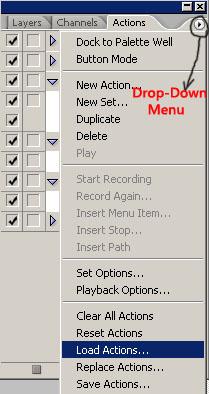
    One great feature about actions is that you can save them and share them with others. Obviously, this means you can get saved actions from other people, too. One site with many great actions is Action Central. You can download actions from there and run them directly in Photoshop. Setting them up is straight forward.

    If you get an Action from the web, it is usually in a Zip file. First you'll need to unzip the file (with a program like Winzip or with WinXPs extractor).

    You can extract the action anywhere you like, but I would recommend making a folder in your Photoshop folder (C:\Program Files\Adobe\Adobe Photoshop CS2\) called "Actions".

    To load the action into Photoshop:
  • Open the Actions window (Window > Actions or Alt+F9).

  • Click on the triangle-in-circle in the top-right corner.

  • Find the action wherever you saved it on the hard drive (not the Zip file, the action itself - it is a .atn file).

  • Then click on the file and click Load.


  • Now, if you want, you can rename the action by double-clicking on it and renaming it. Similarly, you can rename the folder (set) the action is in the same way. Or, if you want to put the action in another folder (set), you can click and drag it to where you want it in the Action window.

    You can also delete the action or folder by clicking and dragging it to the trash can in the lower-right corner of the Actions window.

    Saving Actions


    Finally, if you want to save an action (to either share with other people, or to back up somewhere in case your hard drive crashes), simply select the folder (set) of the action, click on the triangle-in-circle in the top-right corner of the Actions window and select "Save Actions...". You have to do it by entire set - not just one action at a time.

    More specific editing techniques will follow in the weeks and posts ahead. In the mean time, feel free to check out my website: http://www.picasaweb.google.com/mgreerphoto. If there is any image you want to know the editing procedure to, let me know at nikonmatt@gmail.com. I may be able to make that the topic of a future editing post.

    Thanks!

    Matt

    Standard Photoshop Adjustment Layers

    How to Add Standard Photoshop Adjustment Layers

    As promised in my last post, here is a guide of the adjustment layers I use most frequently when editing photos in Photoshop CS2. The following posts will describe the adjustment layers I use, what blending mode I use for each adjustment layer, and how to efficiently add these adjustment layers to your photos while editing - using actions and batch processing.

    Benefits of Editing with Adjustment Layers

    Most of the editing I do with adjustment layers can be done without layers - that is to say that edits such as Curves and Hue/Saturation can be applied directly to the main image layer itself.

    The benefit to using adjustment layers is that no edit is permanent until you flatten the image. You can even save the image with all of its adjustment layers as a Photoshop Document (.psd), and when you reopen it, all the changes you made to the adjustment layers will still be there for you to change back, remove, or alter.

    If you were to, for example, edit curves without layers, then go on to change saturation, crop the image, then add vignetting, the only way to go back and change what you did to the curves would be to go back in the history, to when you changed the curve (thus losing all work done since), or start the image editing from scratch.

    With adjustment layers, however, so long as that adjustment layer is still there, you can go back and alter the adjustment at any point in the editing process. It is a lossless editing process, and very handy. Sometimes one edit will affect the way another edit appears, so the first edit may need to be tweaked. This makes editing far more efficient and accurate!

    Most Common Adjustment Layers

    These are the adjustment layers that I use most often. I do sometimes use other layers, and often I don't use all of these. I tried to pare down the number of adjustment layers to something that would easily fit in the layers window, and still offer what I needed most. These are my selections, but YMMV. *Note: Blending Modes are shown in bold under each section.

  • Selective Colour (Canadian spelling - no 'u' in Photoshop)
  • Lighten/Darken specific colours
  • Add/Subtract sub-colour values (ex: decreasing the amount of cyan in the greens)
  • Mode: Normal
  • Hue/Saturation
  • Used for adjusting the hue and saturation of individual colours
  • Mode: Colour (prevents posterization of colours)
  • Curves
  • This curves layer used mostly for contrast and brightness adjustment. Colour balance can also be done with curves, but I prefer to add another curves layer for this.
  • I often use several curves adjustment layers as I find it easier than creating one very complicated curve. Multiple curves can be used in conjunction with each other, or applied to specific parts of images with masks (to be discussed in later posts).
  • Mode: Luminosity
  • Levels
  • Adjusts whitepoint and blackpoint (levels at which brightness values reach their extremes).
  • Sometimes used for brute-force brightness/contrast adjustment.
  • When holding Alt while moving the black or white sliders, preview will show which values have maxed out. Good way of checking to see if you've lost all detail on either end of brightness spectrum.
  • Mode: Luminosity
  • Soft Light Layer
  • Paintbrush strokes can be used as gentle marks, when used at low opacity.
  • Add vignetting with a large, soft, low-opacity paintbrush.
  • Lighten/Darken specific areas that would be too complicated to adjust with curves or other adjustments.
  • Add colour tint to specific areas, ie: whiten teeth, brighten eyes, add red to cheeks.
  • Mode: Soft Light
  • Adding Layers

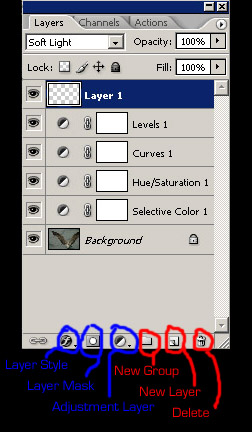
    First, you will need to have a photo open in Photoshop. Then, in the text command bar, click Window > Layers to bring up this:


    To add a new adjustment layer, click on the split circle labeled Adjustment Layer, then choose the layer you want to add. To change the blending mode, choose the mode from the drop down menu just under the layers tab itself (titled soft light in the image above).

    Note: There is one exception to this. To add the Soft Light Layer, you will need to click on the New Layer icon at the bottom of the Layers window. Be sure to change the Mode of this layer to Soft Light or any painting you do on that layer will be too harsh for general editing.

    Once more, for easy reference, here are the adjustment layers I use most, and the blending mode following them. They show up in reverse order (newest on top), so if this matters to you, be conscious of it if making an action out of this sequence:

    Layer Name Blend Mode
    Selective Colour Normal
    Hue/Saturation Colour
    Curves Luminosity
    Levels Luminosity
    New Layer Soft Light


    Finally, to save an image as a JPG or TIFF, you need to flatten the image. Otherwise, it will save as a Photoshop Document (.psd) and be very large (30+ Mb for an image from a 6MP camera). I do sometimes save images a .psd's if I want to go back in later to do work on individual layers, but when I'm done, I save them as .jpg files.

    So, to flatten the layers, simply click Layer > Flatten Image. Then save the image however and wherever you like! Please enjoy!

    Matt Greer
  •